- Go
to Network>>VLAN>>configure VLAN parameters, then change the
port needs to be WAN to a different VLAN. - Go
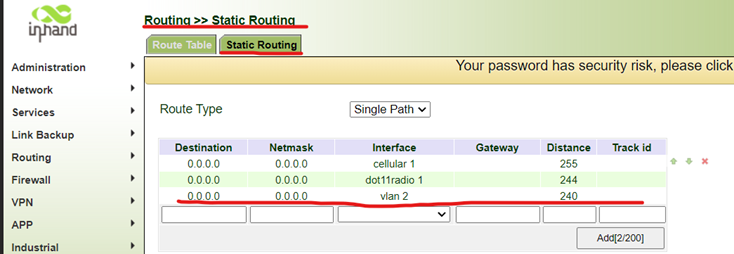
to Routing>>static routing>>static routing, then create a
routing rule like following. Link with smaller distance will have higher
priority. - Go
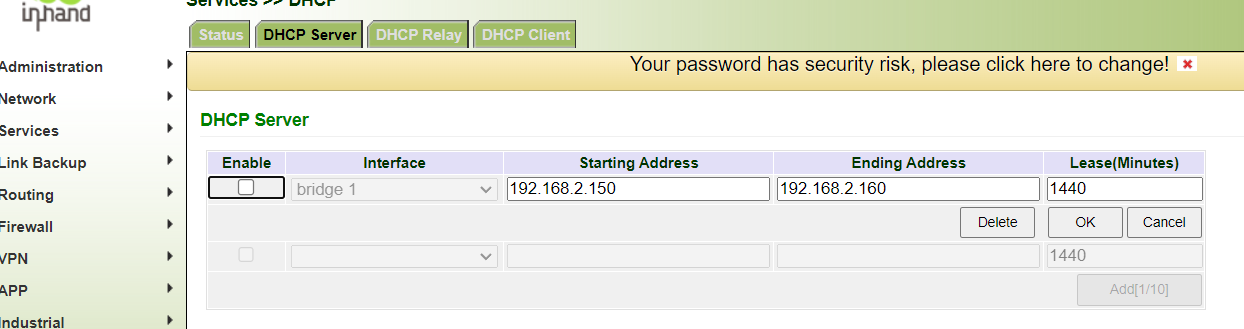
to Services>>DHCP>>DHCP server, disable whatever DHCP server you
have there. Click OK then apply. - Then
go to DHCP Client, enable VLAN2 as a DHCP Client. - go back to DHCP Server, then re-enable the DHCP Server for bridge 1.
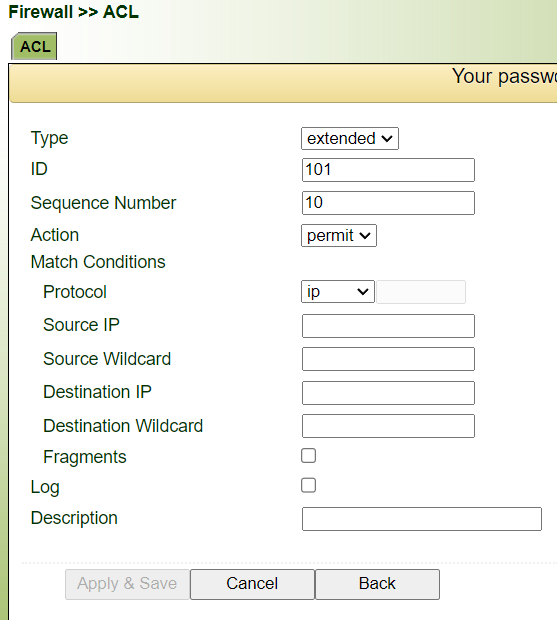
- go to Firewall>>ACL, add a duplicate of ACL #100, change the ID number to any number not in use. 101 is used in following example.
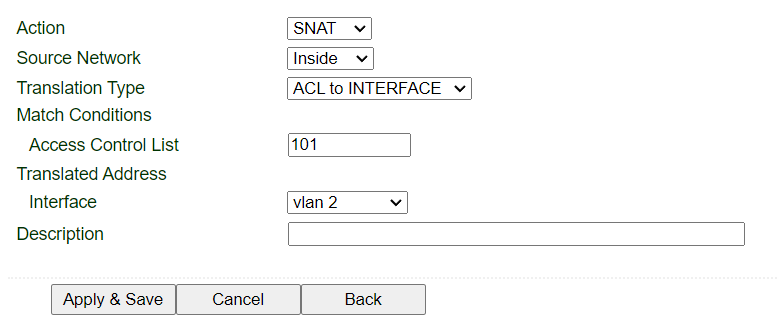
- Go to Firewall>>NAT, add an ACL-to-Interface SNAT using the ACL created in step.6 for VLAN2.

Here's a quick setup method for change Ethernet port on VG710 to a WAN port
1.Go
to Network>>VLAN>>configure VLAN parameters, then change the
port needs to be WAN to a different VLAN.
port needs to be WAN to a different VLAN.
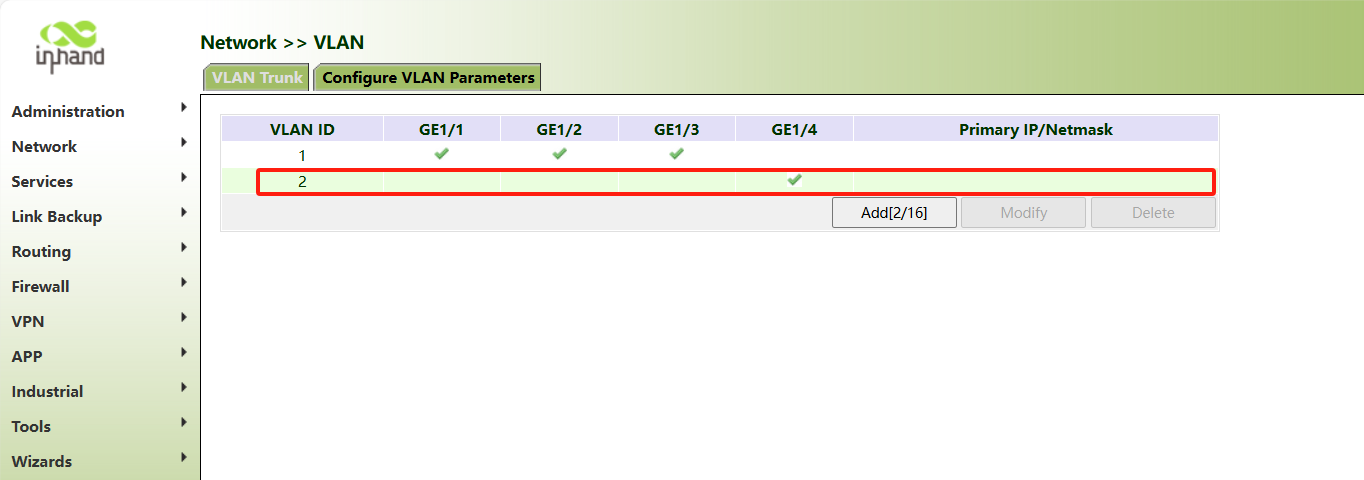
2.Go
to Wizards>>New WAN, Select the vlan2 interface created in step 1 for WAN port configuration
to Wizards>>New WAN, Select the vlan2 interface created in step 1 for WAN port configuration
Method 1 Static IP configuration
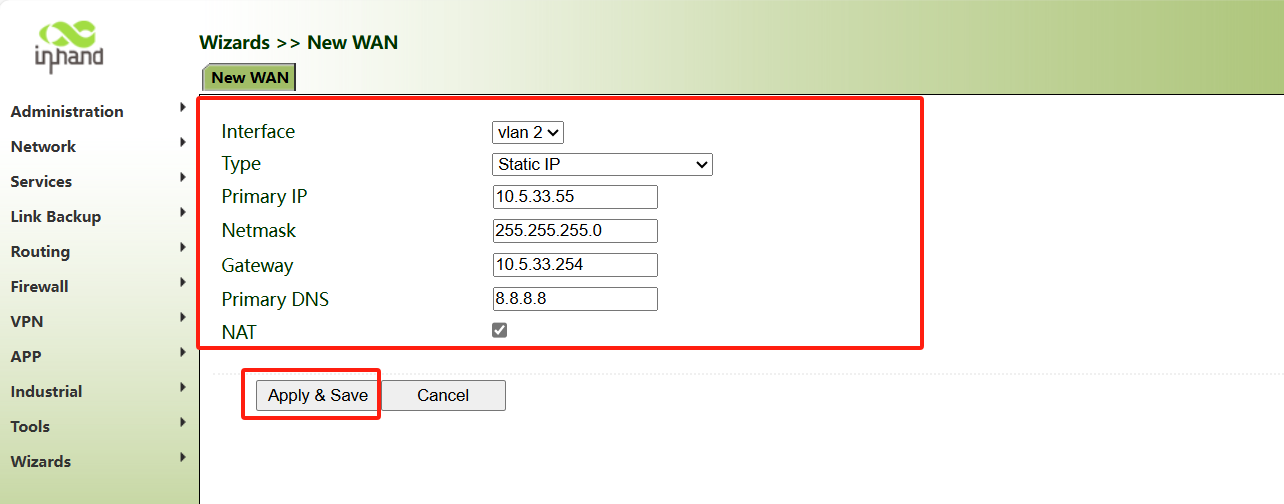
Method 1 Automatic IP configuration
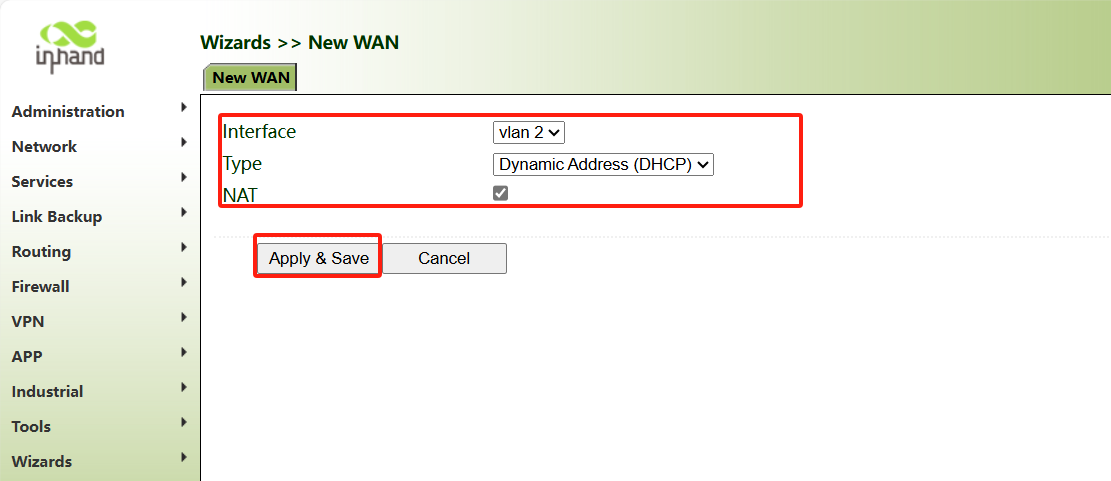
With the above 2 steps configured correctly and cables connected, you can now use the Ethernet port as WAN.
Corrected to: "Method 2: Automatic IP configuration"